
LIMITED TIME OFFER! Get started for just $1 with code: TRYNOW
LIMITED TIME OFFER!
Get started for just $1 with code: TRYNOW
What can Envizia do for Design 3D users?
1 )
Start with simple gray renders
Move over image to control slider to see before and after.
Design by Chris Tyler
Build your ideas using simple forms
Start with simple shapes in Design 3D, bring them into Envizia’s “3D Base to Render” mode, add a text prompt, and generate high-quality renders in seconds—perfect for concept exploration, presentations, graphics, and more.
Example Prompt:
“A modern beach house, on a beach, white sandy beach. Residential Building, Frank Lloyd Wright Style, Frank Gehry style, Sunrise”
Click on image to start/stop slideshow. Double-click to enlarge.
Use Envizia for ideation
Before investing time texturing your model or building an environment in Design 3D, use Envizia to quickly explore different materials, lighting, and environments. If you discover a direction you like, you can continue developing the idea in Envizia—generating new views and animations—or return to Design 3D to build and refine the design there.
Example Prompt:
“Modern athletic sneaker, engineered knit mesh, white and gum sole, studio product lighting, soft gradient background”
2 )
Take your renders to a whole new level
Move over image to control slider to see before and after.
Enhance and explore your render
Start with a basic render and let Envizia refine lighting, materials, and realism. From there, generate variations to explore new looks, environments, and creative directions.
Example Prompt:
“Photoreal metallic blue Audi sedan in an industrial warehouse, polished concrete reflections, cinematic lighting, ultra-realistic materials.”
Click on image to start/stop slideshow. Double-click to enlarge.
Transform lighting, mood, and atmosphere
Begin with a basic Design 3D render, then use Envizia to generate variations that change the mood of the scene. Quickly visualize different lighting conditions and atmospheric effects—from bright daylight to sunset warmth or dramatic rain, and from studio lighting to natural light.
Example Prompt:
“Modern luxury hotel resort, sweeping curved glass façade, twin towers, landscaped grounds, driveway with cars, cinematic architectural render”
3 )
Stage in ultra-realistic settings
Click on image to start/stop slideshow. Double-click to enlarge.
Bring your designs into real-world scenes
Start with a basic Design 3D render, then use Envizia to create scenes that place your design on different surfaces and alongside contextual elements—producing compelling, presentation-ready imagery. See your ideas in a home, on a store shelf, in a showroom, or even in the desert. The possibilities are limited only by your imagination.
Example Prompt:
“Three supplement products on a polished marble bathroom counter in a modern luxury home, soft natural morning light, spa-like atmosphere. Keep the three products exactly as in the reference image—same position, shape, and label details.”
4 )
Generate new views of your designs
Click on image to start/stop slideshow. Double-click to enlarge.
Design by Chris Tyler
Explore different angles and compositions
Start with a single Design 3D grayscale or photoreal render, then use Envizia to generate new viewpoints and arrangements of your design. Instantly explore different camera angles, product positions, and compositions—helping you create a range of compelling visuals from one original render.
Example Prompt:
“Two elegant square watches with blue dials and brown leather straps latched together forming a circular shape, viewed from the upper-right angle, reflective black surface, studio lighting emphasizing texture and metallic details, professional product photography style.”
5 )
Experiment with materials and finishes
Click on image to start/stop slideshow. Double-click to enlarge.
Design by Chris Tyler
See your designs in different materials
Start with a basic Design 3D render, then use Envizia to generate variations that transform the materials of your design. Instantly visualize how your product looks in glass, metal, plastic, stone, and more—helping you compare finishes, explore new ideas, and create compelling presentation-ready imagery.
Example Prompt:
“Three slabs are translucent bright coolant-green glass with soft internal glow; the others are rough cast cement with porous texture and chipped edges. Studio lighting highlighting glass glow and matte concrete contrast, neutral gradient studio background, photorealistic product render.”
6 )
Bring your designs to life with animation
Click on play button to start/stop video. Click max-button to enlarge.
All video produced by Envizia
Create motion, interaction, and cinematic presentation
Start with a Design 3D render, then use Envizia to generate animations that bring your design to life. Instantly create product rotations, camera moves, and dynamic lighting while animating the environment around your design as well. Add motion in the scene, realistic human activity, and even natural interactions with your product—helping you tell richer visual stories and present your ideas with greater impact.
Example Prompt:
“Small sculptural object made of five elongated rectangular slabs fused together into a single stacked form, some translucent green glass and others rough cast cement. A manicured female hand gently grips the sculpture between fingers and thumb and lifts it slightly from the surface. Soft studio lighting highlighting glass reflections and concrete texture, neutral studio background, photorealistic macro product video.”
Just $1 for your first month!
Try Envizia AI now to see how you can transform your creative workflows with the Envizia Explorer Plan.
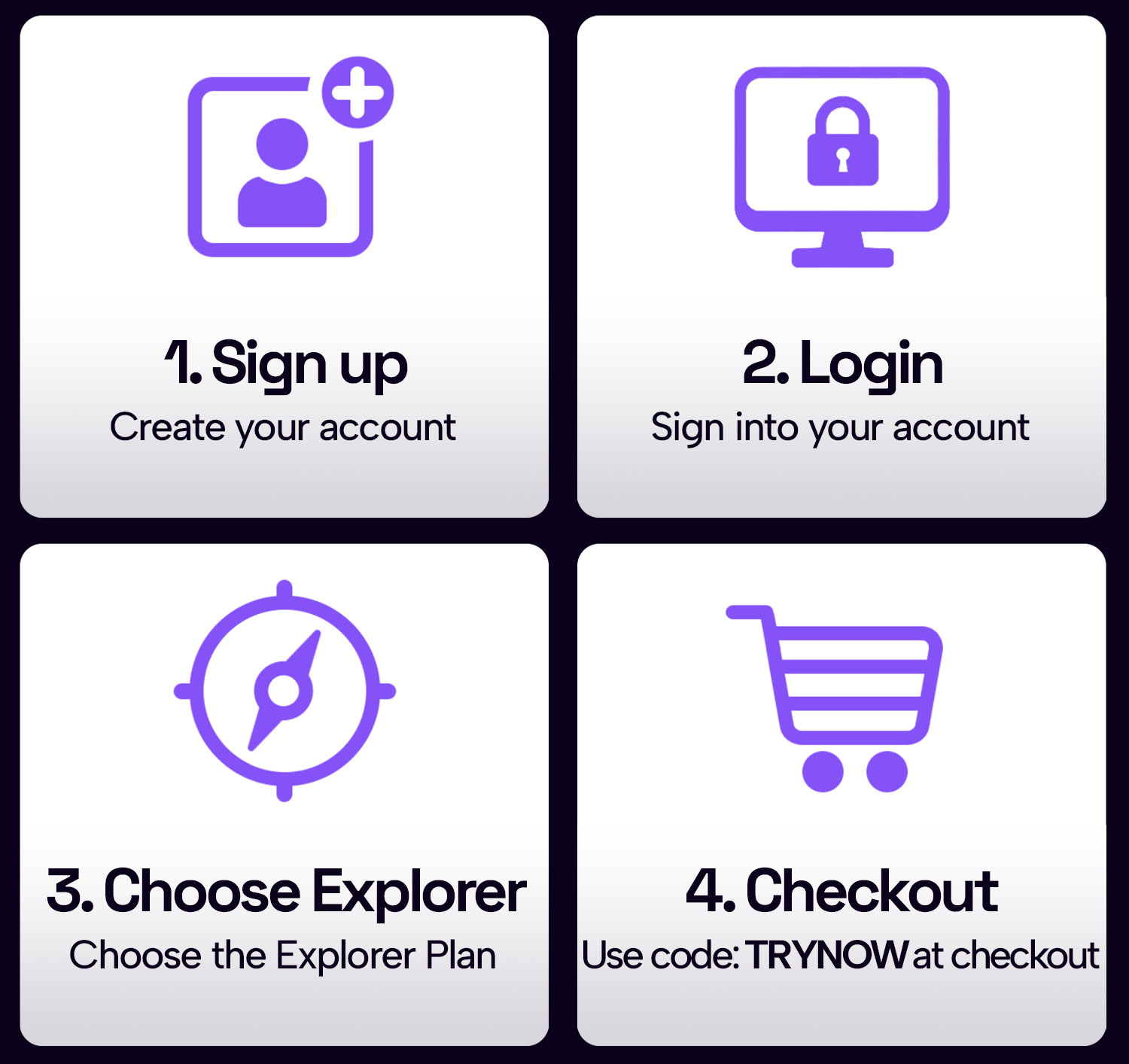
Get started in minutes. Cancel anytime. Use Code: TRYNOW

1. Sign up
Create your account

2. Log in
Sign into your account

3. Choose Explorer
Choose the Explorer plan

4. Checkout
Use code: TRYNOW at checkout
What makes Envizia different?
Envizia stays true to your input
Unlike most AI image generators, Envizia maintains alignment with your Design 3D input. Set up your camera angle, shapes and forms and tell it what to do from there. You’ll find near perfect alignment. That means your shapes, proportions, and perspective remain consistent—no unexpected changes that drift away from your design intent.
A user interface designed around you
The Envizia interface is organized around five powerful areas that support different stages of your workflow. Chat enables free-flowing creative exploration. Create offers six specialized modes for generating new visuals from your ideas. Edit includes five tools for refining and modifying your work. Upscale provides two ways to enlarge and enhance images. And Video allows you to generate animations from a single image or from defined starting and ending frames.
Built in portfolio system
Envizia also includes a built-in portfolio system that helps you organize your work. Save renderings to project folders, keep track of your ideas as they evolve, and download your images whenever you need them.
The best and the latest
Behind the scenes, Envizia connects you to some of the most advanced AI models available, including Flux, GPT Image, and Nano Banana, along with our own specialized models and presets. We continuously refine the platform—improving both the interface and the underlying models—to give designers the most capable AI-assisted rendering workflow available.
Design smarter. Explore faster.
Envizia accelerates the creative process — transforming early ideas into new design possibilities.
Product design ideation: Sketch ➜ concept render
Interior design ideation: 3D ➜ concept render
Apparel design ideation: 3D ➜ concept render
Product design: Sketch ➜ presentation render
Furniture design ideation: 3D ➜ concept render
Interior design ideation: 3D ➜ concept render
Architectural ideation: 3D ➜ concept render
Illustration ideation: 3D ➜ concept render
Illustration ideation: Sketch ➜ concept render
Illustration ideation: 3D ➜ concept render
Product design ideation: Sketch ➜ concept render
Interior/information design: Sketch ➜ presentation render
See how it works.
Experience Envizia in action — from first spark to finished visualization.
Design in realtime
See how Envizia fits into real design workflows — from early ideas to polished visuals.
This short walkthrough, by renowned design educator Chris Tyler, shows how fast you can explore options and refine direction in just minutes.
To watch the expanded, 25 minute version, and check out the many other tutorials available, just click the button below:
Just $1 for your first month!
Try Envizia AI now to see how you can transform your creative workflows with the Envizia Explorer Plan.
Get started in minutes. Cancel anytime. Use Code: TRYNOW
1. Sign up
Create your account
2. Log in
Sign into your account
3. Choose Explorer
Choose the Explorer plan
4. Checkout
Use code: TRYNOW at checkout
ENVIZIA AI POWERED BY

For customer support contact sales@envizia.ai. For technical support contact support@envizia.ai.
© 2026 Strata Mixed Reality, Inc. All rights reserved. Envizia and Strata are trademarks of Strata Mixed Reality, Inc. All other trademarks and copyrights are the property of their respective owners and are used for identification purposes only. No affiliation or endorsement is implied. For addional information see our Terms of Service, Privacy Policy, and Affiliate Terms pages.
